Zoom
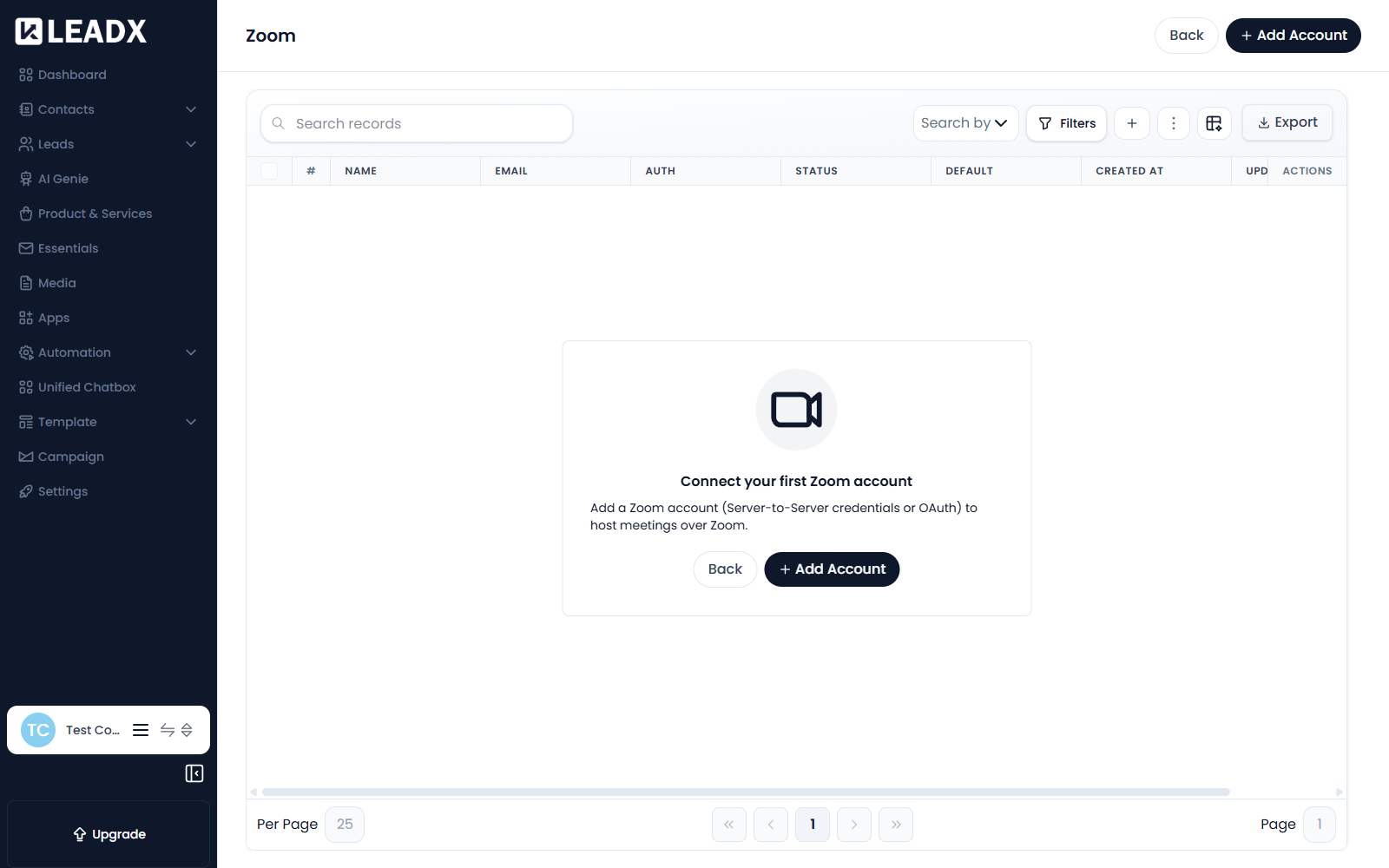
Overview
Connecting Zoom lets LeadX host meetings over Zoom. Once an account is connected, scheduling a meeting with Zoom as the provider creates the meeting in Zoom and sends the joining details to the attendees.
Access
- Navigation path:
Sidebar > Apps > Zoom - Route:
/apps/zoom
Prerequisites
You need a Zoom app created in the Zoom Marketplace, because LeadX authenticates as that app rather than as your personal login.
Create a Zoom Server-to-Server OAuth app in the Zoom Marketplace and paste its credentials here.
Connect A Zoom Account
Click Add Account.
Choose How To Authenticate
| Mode | Use it when |
|---|---|
| Server-to-Server | The connection belongs to the company and should keep working without anyone staying signed in. This is the usual choice. |
| OAuth | You would rather authorise through a Zoom sign-in prompt. |
Fields (Server-to-Server)
| Field | What it does |
|---|---|
| Configuration Name (required) | A name for this connection inside LeadX, for example Company Zoom. Only your team sees it. |
| Account ID (required) | From your Zoom Marketplace app. |
| Client ID (required) | From the same Zoom app. |
| Client Secret (required) | The app's secret. Entered as a password field and never shown back in full. |
Steps
- In the Zoom Marketplace, create a Server-to-Server OAuth app.
- Copy its Account ID, Client ID and Client Secret.
- In LeadX, go to
Sidebar > Apps > Zoomand clickAdd Account. - Choose Server-to-Server.
- Enter a Configuration Name and paste the three credentials.
- Click
Add.
Table Details
| Column | Meaning |
|---|---|
| Name | The configuration name you gave it |
| The Zoom account the connection belongs to | |
| Auth | Whether it uses Server-to-Server or OAuth |
| Status | Whether the connection is working |
| Default | Whether this account is used when no other is chosen |
| Created At / Updated At | When it was connected, and when it last changed |
| Actions | View, edit and delete controls |
Edit Or Delete A Connection
Use the row actions to open, edit or remove a connection. Deleting one stops LeadX creating Zoom meetings through it — meetings already scheduled stay in Zoom.
Helpful Notes
- Before any account is connected the page shows Connect your first Zoom account.
- If you connect several accounts, mark one as Default so LeadX knows which to use.
- Individual members can also connect their own Zoom account under Member Settings. That is a personal connection; this page is the company-wide one.
- Scheduling a meeting with Zoom as the provider creates it in Zoom and invites the attendees, so it reaches real people.