Dashboard
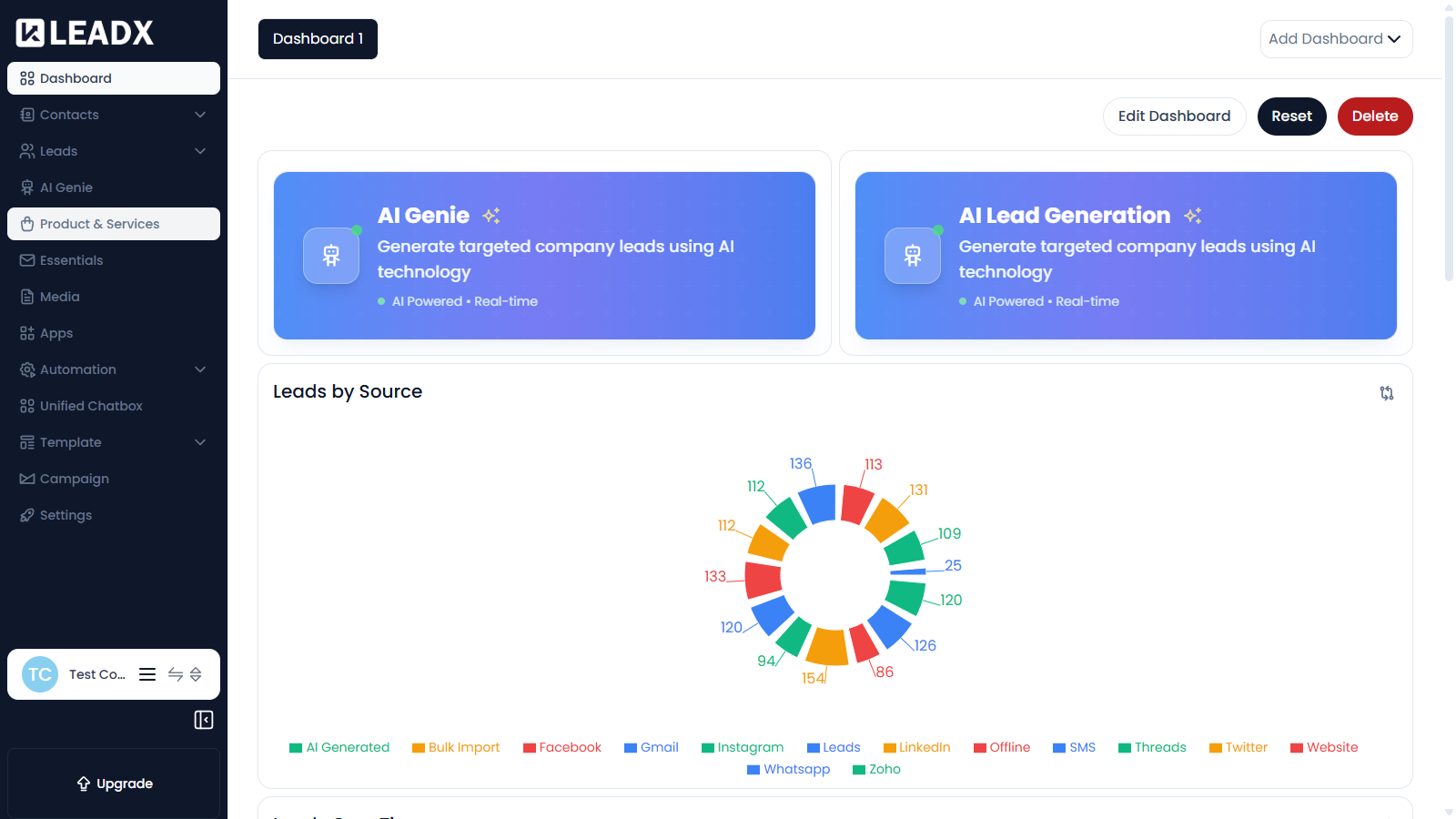
Overview
The Dashboard is the first page you see after logging in. It gives you a live summary of your CRM through widgets such as lead counts, lead sources and activity over time.
You can build more than one dashboard and arrange the widgets to suit how your team works.
Access
- Navigation path:
Sidebar > Dashboard - Route:
/ - Access: available to every logged-in member.
Dashboard Controls
The header row lets you manage the dashboard itself:
Add Dashboard— create an additional dashboardEdit Dashboard— change the current dashboard's layout and widgetsReset— restore the dashboard to its default arrangementDelete— remove the current dashboard
If you have several dashboards, use the name button on the left (for example Dashboard 1) to switch between them.
Widgets You May See
- AI Genie and AI Lead Generation shortcut cards
- Leads by Source — a breakdown of where your leads came from, such as AI Generated, Bulk Import, Facebook, Gmail, Instagram, LinkedIn, SMS, Website and WhatsApp
- Leads Over Time — lead volume across a date range
- Campaign Performance Over Time
- Total Contacts and Total Leads counters
- A Leads table widget showing recent lead records
Helpful Notes
- Widgets only show data once the related feature has been used, so a new workspace will show empty charts.
- The widgets available to you can depend on your plan and your access permissions.