AI Genie
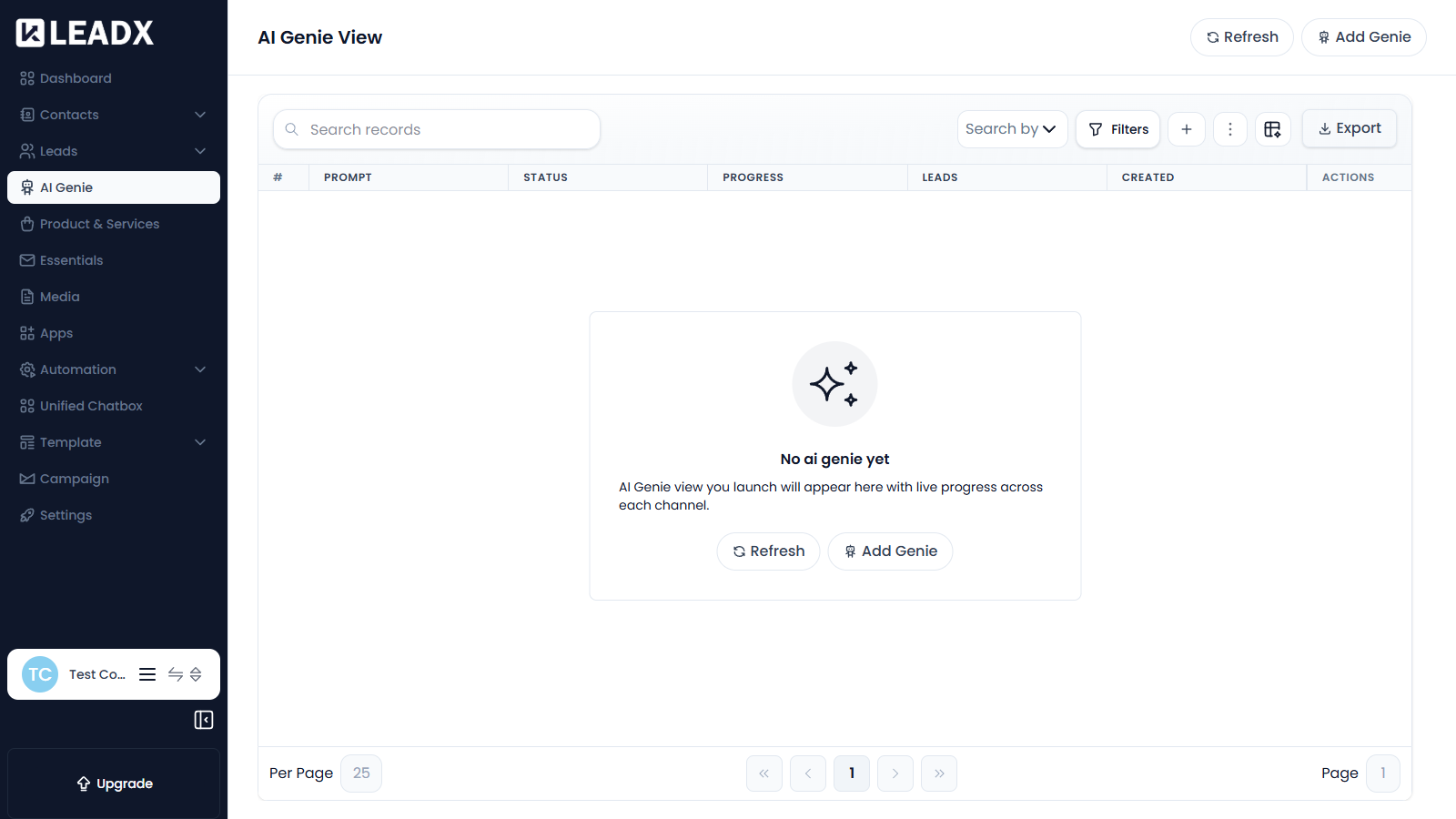
Overview
AI Genie goes a step further than the AI Lead Generator. It finds prospects and runs the outreach to them — drafting messages and sending them over the channels you have enabled.
Because Genie can send real email and WhatsApp messages to real people, it has more prerequisites and a review step before anything goes out.
| AI Lead Generator | AI Genie | |
|---|---|---|
| Finds prospects | Yes | Yes |
| Contacts them | No | Yes |
| Needs Email/WhatsApp connected | No | Yes |
Access
- Navigation path:
Sidebar > AI Genie - Route:
/ai-genie/view - Access: available to users who can view AI Genie.
Prerequisites
Before running a Genie, set these up:
-
A sending channel. Connect at least one of:
If none is connected, the page warns "No SMTP app selected — the most recently added one will be used", with a
Choose applink. -
Channels enabled in settings. Turn on the channels Genie may use, and pick which connected app each sends through, in AI Genie Settings.
-
AI credits on your plan — generating and drafting both consume credits.
-
Optional but recommended: add your website to the whitelisted domains in AI Genie Settings, so AI-written messages only ever link to your own site.
Start A Genie
Click Add Genie.
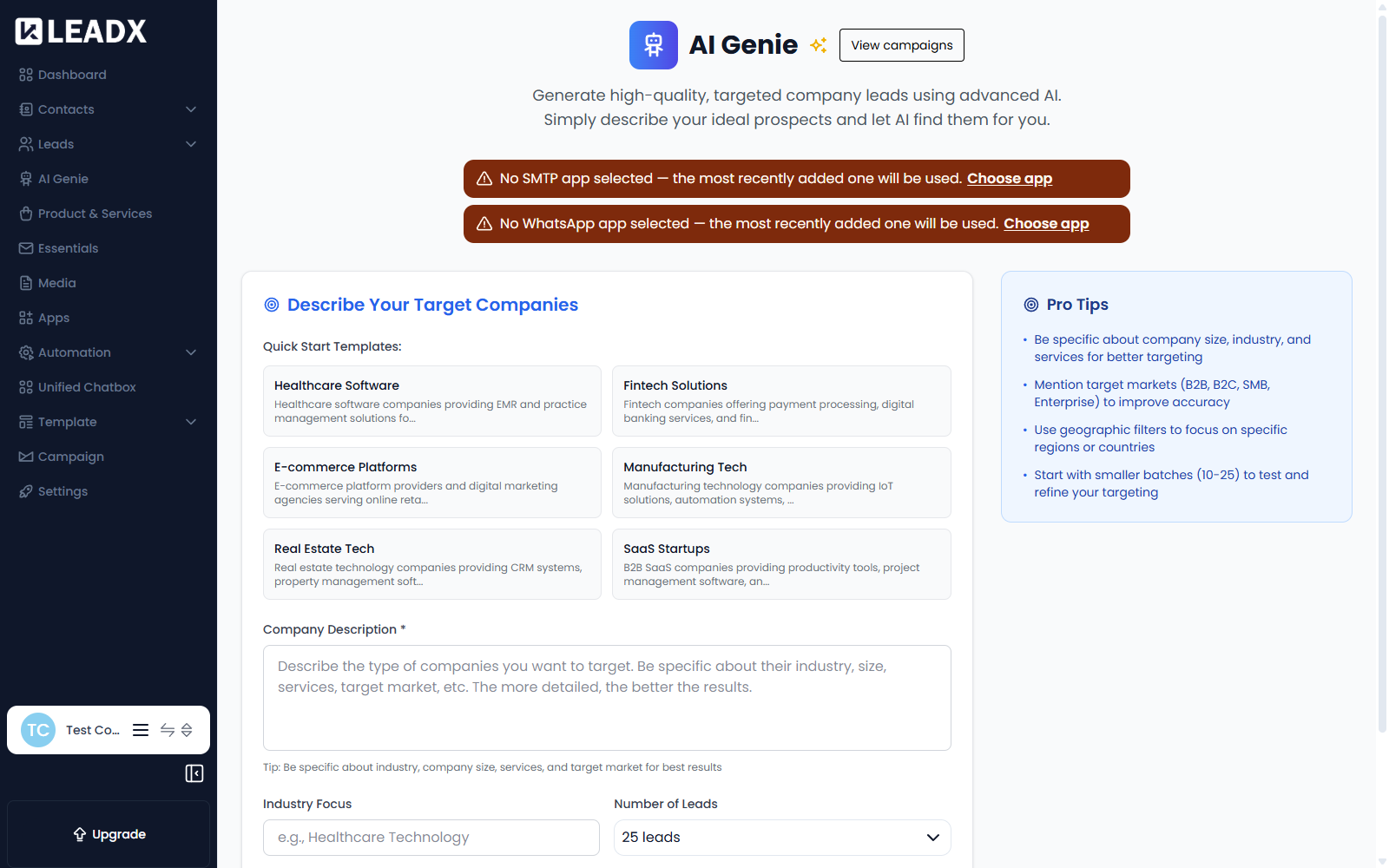
Choosing The Sending Apps
At the top, Genie shows which apps it will send through. If you have several connected, use Choose app to pick one rather than letting it default to the most recently added.
Describing Your Target
The targeting form is the same one the AI Lead Generator uses.
| Field | What it does |
|---|---|
| Company Description (required) | Describes the companies to reach. Be specific about industry, size, services and market. |
| Industry Focus | Narrows to a particular industry. |
| Number of Leads | How many to work through: 1 to 50. |
| Advanced Filters | Extra conditions, such as geography. |
| Enrich generated contacts after creation | Fills in extra detail from each contact's website and social profiles. |
Quick Start Templates — Healthcare Software, Fintech Solutions, E-commerce Platforms, Manufacturing Tech, Real Estate Tech and SaaS Startups — fill the description for you.
Steps
- Confirm the SMTP and WhatsApp apps at the top are the ones you want.
- Click
Add Genie. - Choose a Quick Start Template or write your own Company Description.
- Set Industry Focus, Number of Leads and any Advanced Filters.
- Start the Genie.
- Use
Refreshto follow its progress across each channel.
Draft And Approve — Before Anything Sends
Genie does not send immediately. It drafts a message for each prospect, and those drafts wait for approval.
- A draft is written but will not go out.
- Approving a draft releases it — the message is sent to a real person as soon as it is approved.
- You can put an approved message back to draft to stop it going out. This is the brake, and it is reversible.
Review the drafted messages before approving. You can approve them one at a time, or approve everything queued for a run at once.
Approval is the point of no return. Once a message is approved it is sent to a real person and cannot be recalled. Read a sample of the drafts before approving in bulk.
Monitoring A Run
| Column | Meaning |
|---|---|
| Prompt | The description used |
| Status | Whether it is queued, running, finished or failed |
| Progress | How far through the audience it is |
| Leads | How many leads the run has produced |
| Created | When it started |
Runs can also be stopped, retried if they failed, or — for a recurring Genie — paused and resumed.
Helpful Notes
- The channels Genie may use, the app each sends through, and the domains it may link to are all controlled in AI Genie Settings.
- Records created by a Genie also appear under AI Lead Generator generations, with their source shown as the Genie campaign.
- Genie-created contacts and leads can fire your Workflows, which may send further messages of their own.
- Start with a small Number of Leads while you are still tuning the description and the message tone.