AI Lead Generator
Overview
The AI Lead Generator finds new prospects for you. You describe the kind of company you want to reach, and AI generates matching contacts and leads directly in your CRM.
It only generates records. If you also want AI to contact those people, use AI Genie instead.
Access
- Navigation path:
Sidebar > Leads > AI Lead Generator - Route:
/ai-lead-generation/view - Access: available to users who can view AI lead generation.
Prerequisites
- AI credits on your plan. Every generated record costs credits, and a run is billed whether or not you keep the results.
- Nothing else is required to generate. Unlike AI Genie, this page does not send messages, so no email or WhatsApp connection is needed.
- To use Enrich, enrichment must be part of your plan.
Generate Leads
Click Add AI Leads to open the generator.
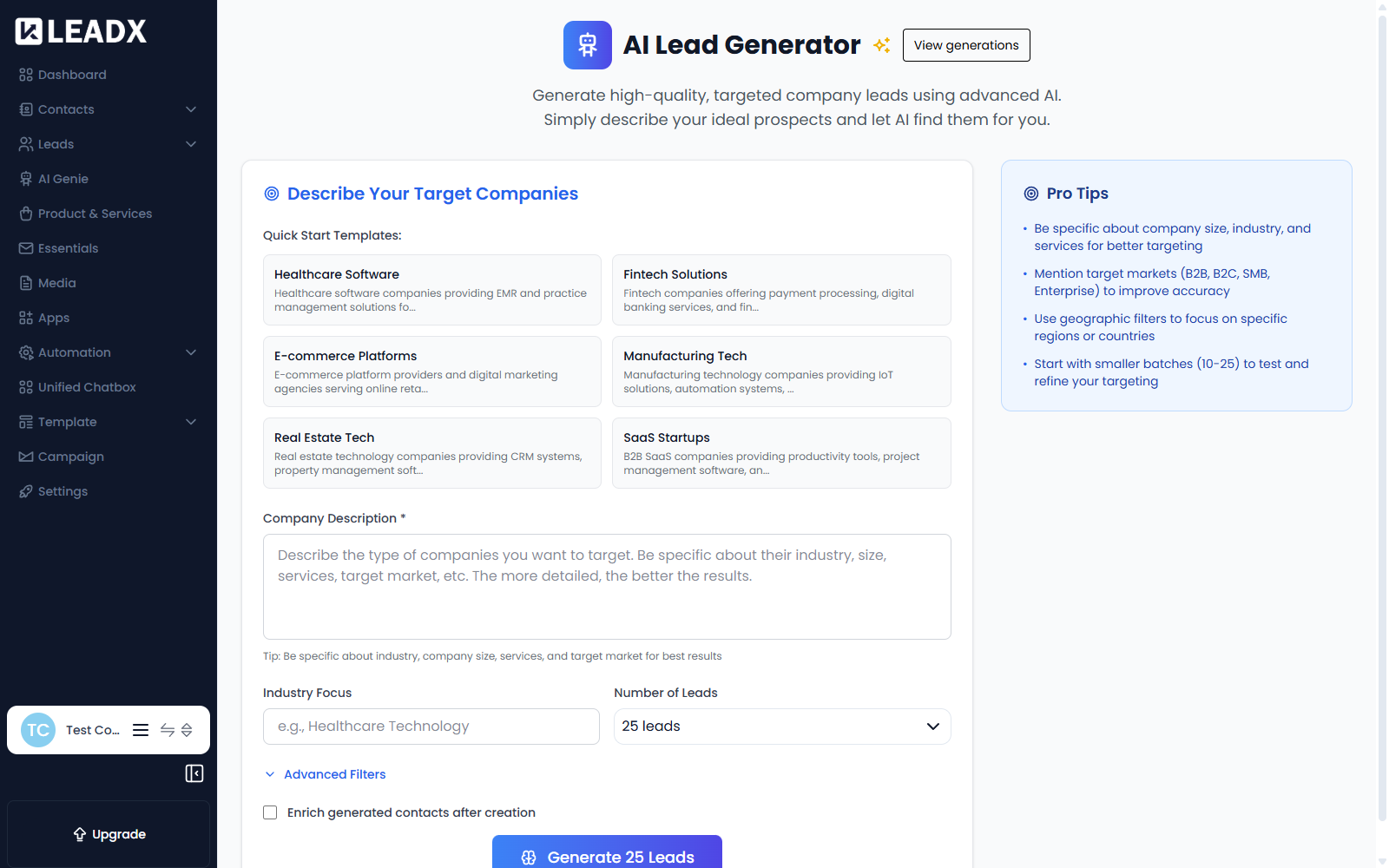
Quick Start Templates
Rather than writing a description from scratch, you can start from a ready-made one:
- Healthcare Software — EMR and practice management providers
- Fintech Solutions — payment processing, digital banking, financial services
- E-commerce Platforms — platform providers and digital marketing agencies serving online retail
- Manufacturing Tech — IoT solutions and automation systems
- Real Estate Tech — CRM and property management software
- SaaS Startups — B2B productivity and project management tools
Clicking one fills the description for you, which you can then edit.
Fields
| Field | What it does |
|---|---|
| Company Description (required) | Describes the companies you want to find. Tip: be specific about industry, company size, services, and target market for best results. |
| Industry Focus | Narrows the search to a particular industry. |
| Number of Leads | How many records to generate: 1, 2, 5, 10, 15, 25 (default), 35 or 50. |
| Advanced Filters | Extra conditions to narrow the search further, such as geography. |
| Enrich generated contacts after creation | Also looks up each generated contact and fills in extra detail from their website and social profiles. Costs additional credits. |
Steps
- Click
Add AI Leads. - Pick a Quick Start Template, or write your own Company Description.
- Set an Industry Focus if you want one.
- Choose the Number of Leads.
- Open Advanced Filters to narrow by region or other criteria.
- Tick Enrich generated contacts after creation if you want enriched records.
- Click
Generate(the button shows the count, for exampleGenerate 25 Leads). - Use
Refreshon the list to follow progress.
Pro Tips (shown on the page)
- Be specific about company size, industry, and services for better targeting
- Mention target markets (B2B, B2C, SMB, Enterprise) to improve accuracy
- Use geographic filters to focus on specific regions or countries
- Start with smaller batches (10–25) to test and refine your targeting
Reviewing A Run
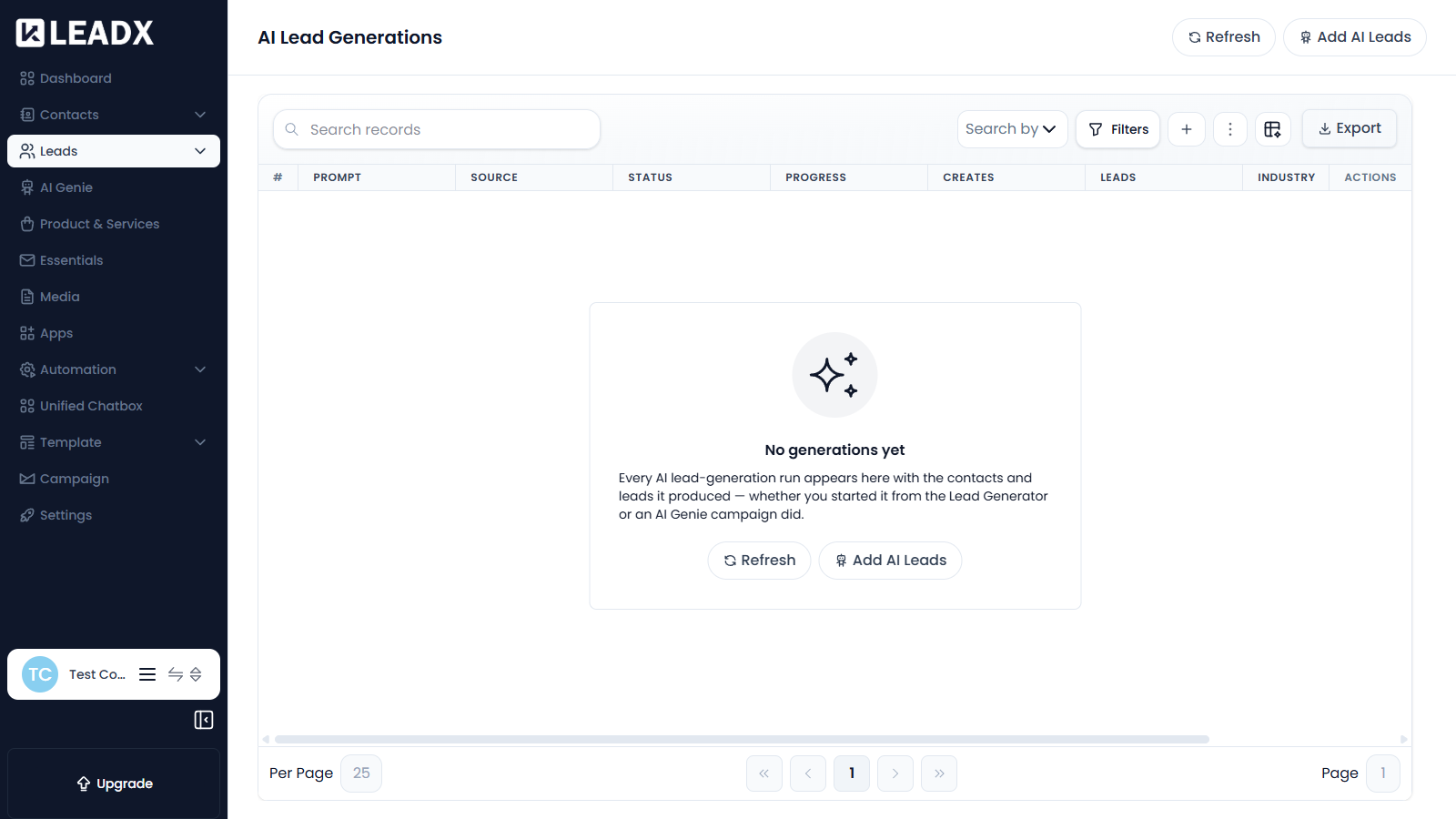
Every run appears in the list at View generations.
| Column | Meaning |
|---|---|
| Prompt | The description used for the run |
| Source | Whether it came from the Lead Generator or an AI Genie campaign |
| Status | Whether the run is queued, working, finished or failed |
| Progress | How far through the run is |
| Creates | How many records were created |
| Leads | How many of those became leads |
| Industry | The industry focus used |
| Created | When the run started |
Runs started by an AI Genie campaign also appear here, not only ones you start yourself.
Helpful Notes
Generating leads writes real records into your CRM and spends credits. It is not reversible by re-running — generating twice creates twice and bills twice. If a run seems slow, use Refresh rather than starting it again.
- Generated contacts and leads can fire your Workflows. If a published workflow is triggered by a contact or lead being created, it will run for every generated record — and may send messages to the people AI invented.
- Start small. A 10-lead run is a cheap way to test whether your description returns the right kind of company before committing to 50.