Chat Widgets
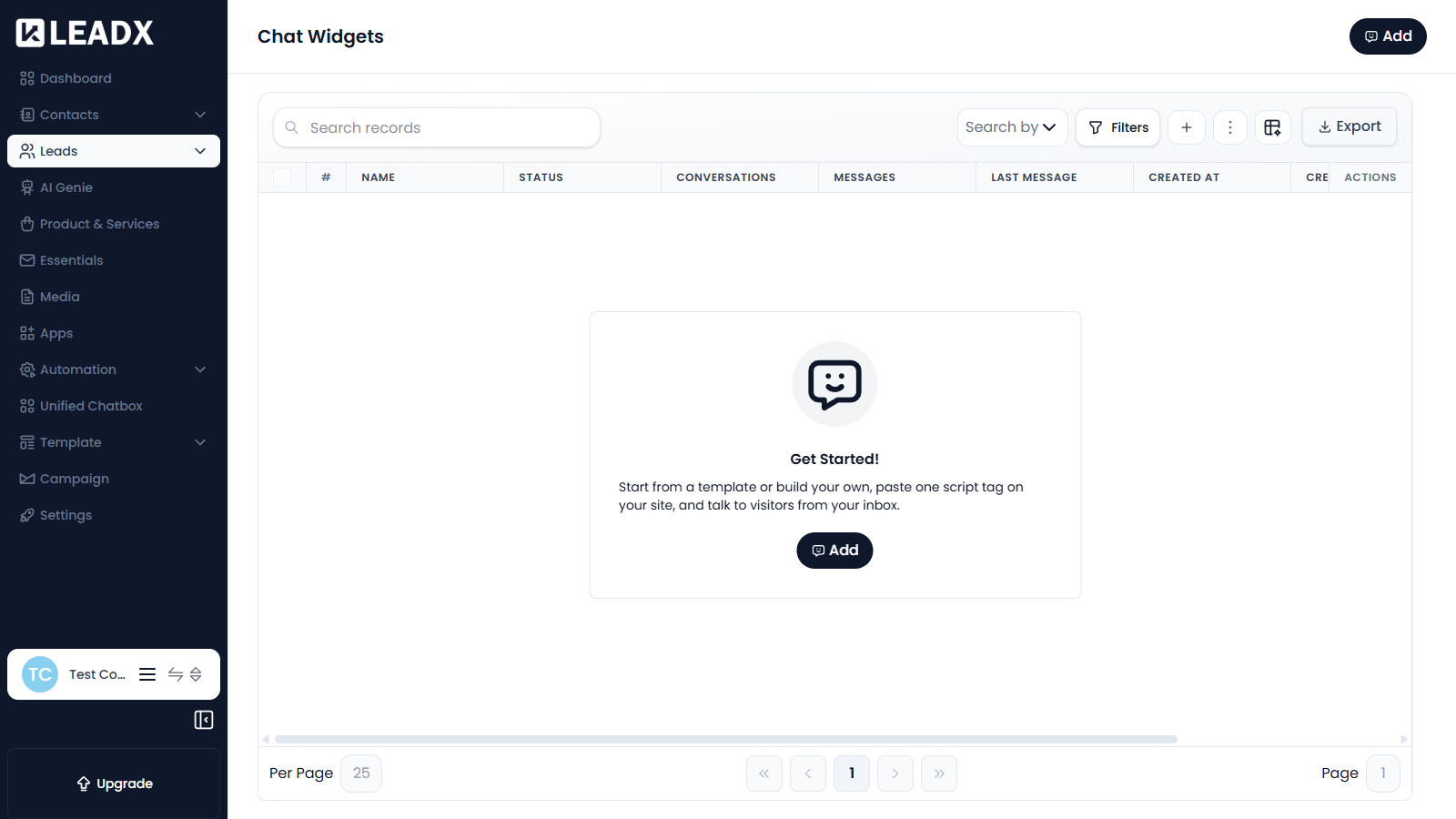
Before you create anything, the page shows a Get Started! panel:
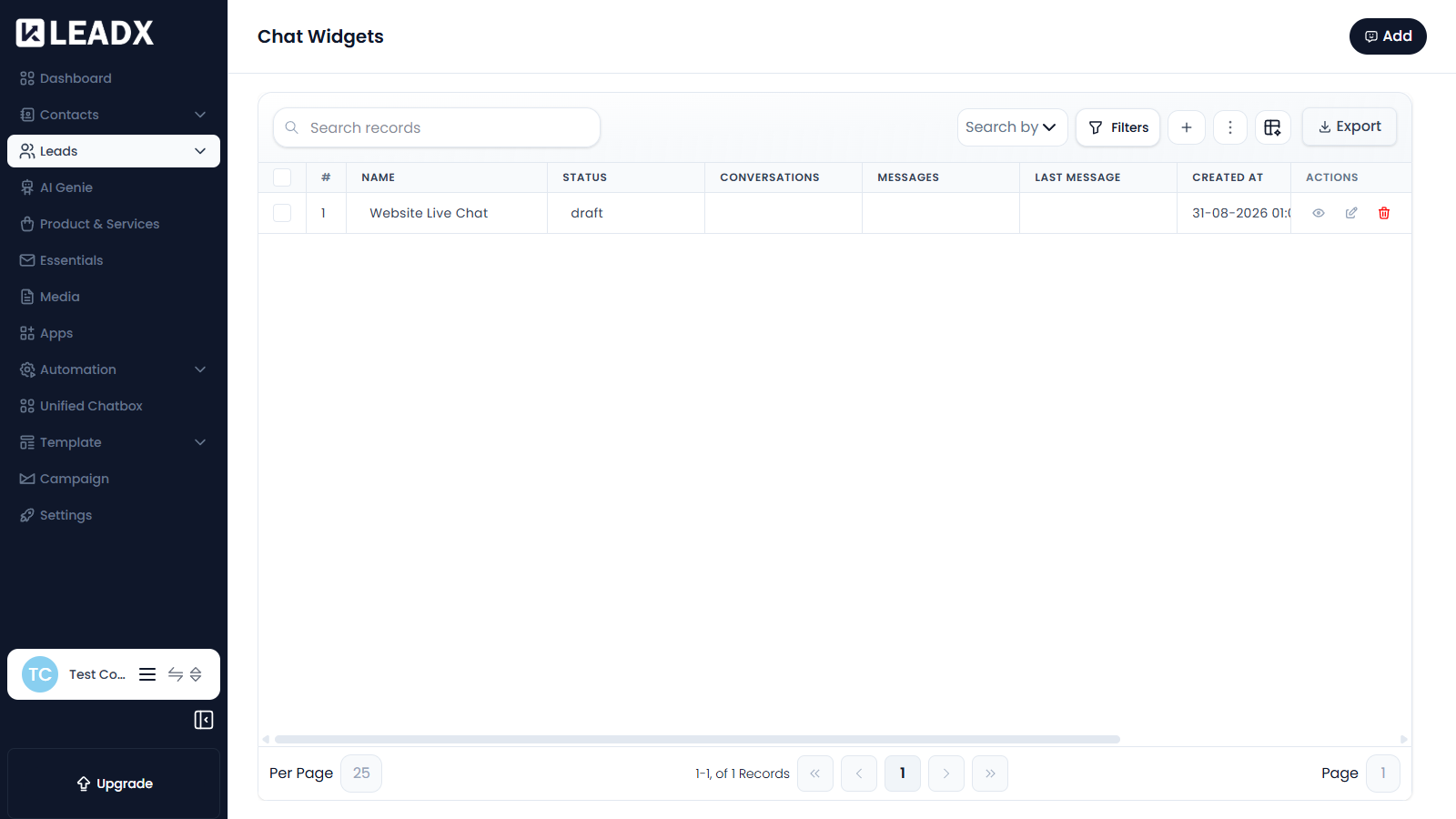
Once you have widgets, they are listed in a table:
Overview
A Chat Widget is the chat box you add to your own website. Visitors use it to start a conversation with you, and those conversations arrive in your LeadX inbox where your team can reply.
Access
- Navigation path:
Sidebar > Leads > Chat Widgets - Route:
/chat-widgets - Access: available to users who can view chat widgets.
What Users Can Do
- create a chat widget from a template or build one from scratch
- copy the script tag that installs the widget on your website
- review how many conversations and messages each widget has handled
- edit a widget's appearance and behaviour
- enable or disable a widget
Steps To Add A Chat Widget
- Click
Add. - Enter a
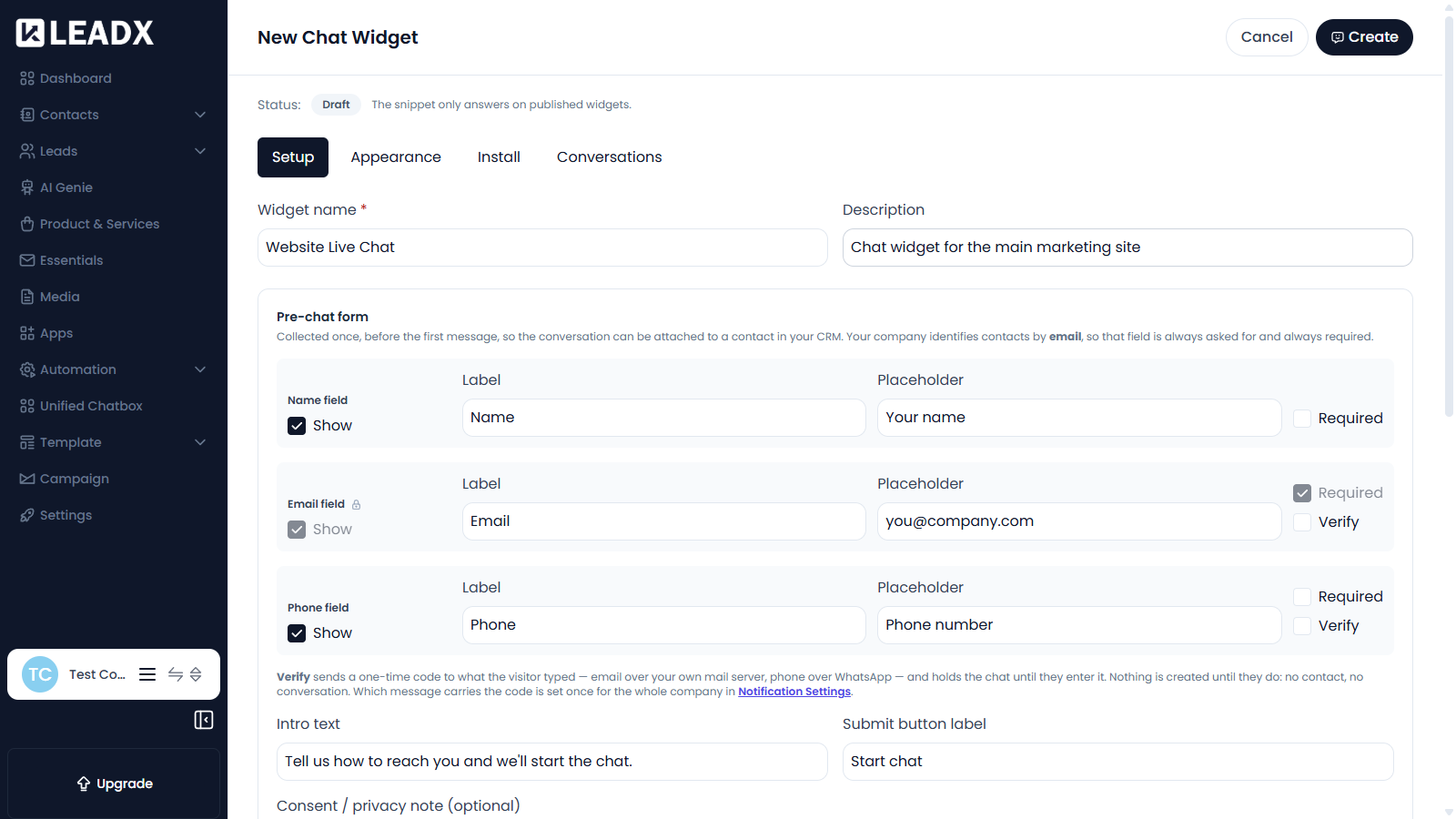
Widget name. The description is an internal note that visitors never see. - Work through the tabs —
Setup,Appearance,InstallandConversations. - Click
Create. - Open the
Installtab and copy the script tag into your website. - Click
Publishwhen you are ready for the widget to start answering.
The Setup Tab
- Pre-chat form — the details collected before the first message, so the conversation can be attached to a contact. Email is always asked for and always required. Each of the name, email and phone fields can be shown or hidden, relabelled, and marked required.
- Verify — sends a one-time code to what the visitor typed, email over your own mail server or phone over WhatsApp, and holds the chat until they enter it. Nothing is created until they do — no contact, no conversation.
- Human handover — controls when a conversation reaches your team, whether it appears in the inbox before handover, and whether a human may intercept it.
- Allowed domains — comma separated, for example
example.com, *.example.com. Leave it empty to allow the snippet on any site. - Behaviour — auto-open delay, offline message, and whether the visitor sees their previous chat.
Once the script is live on your site, visitor conversations appear in Unified Chatbox.
Table Details
The chat widget list shows:
- Name
- Status
- Conversations
- Messages
- Last Message
- Created At and Created By
- Updated At
- Actions
Helpful Notes
- A new widget is created as a
draft. The snippet only answers on published widgets, so remember to publish it. - A widget only collects conversations after its script tag has been added to your website.
- Which message carries the verification code is set once for the whole company in Notification Settings.