AI Genie Settings
Overview
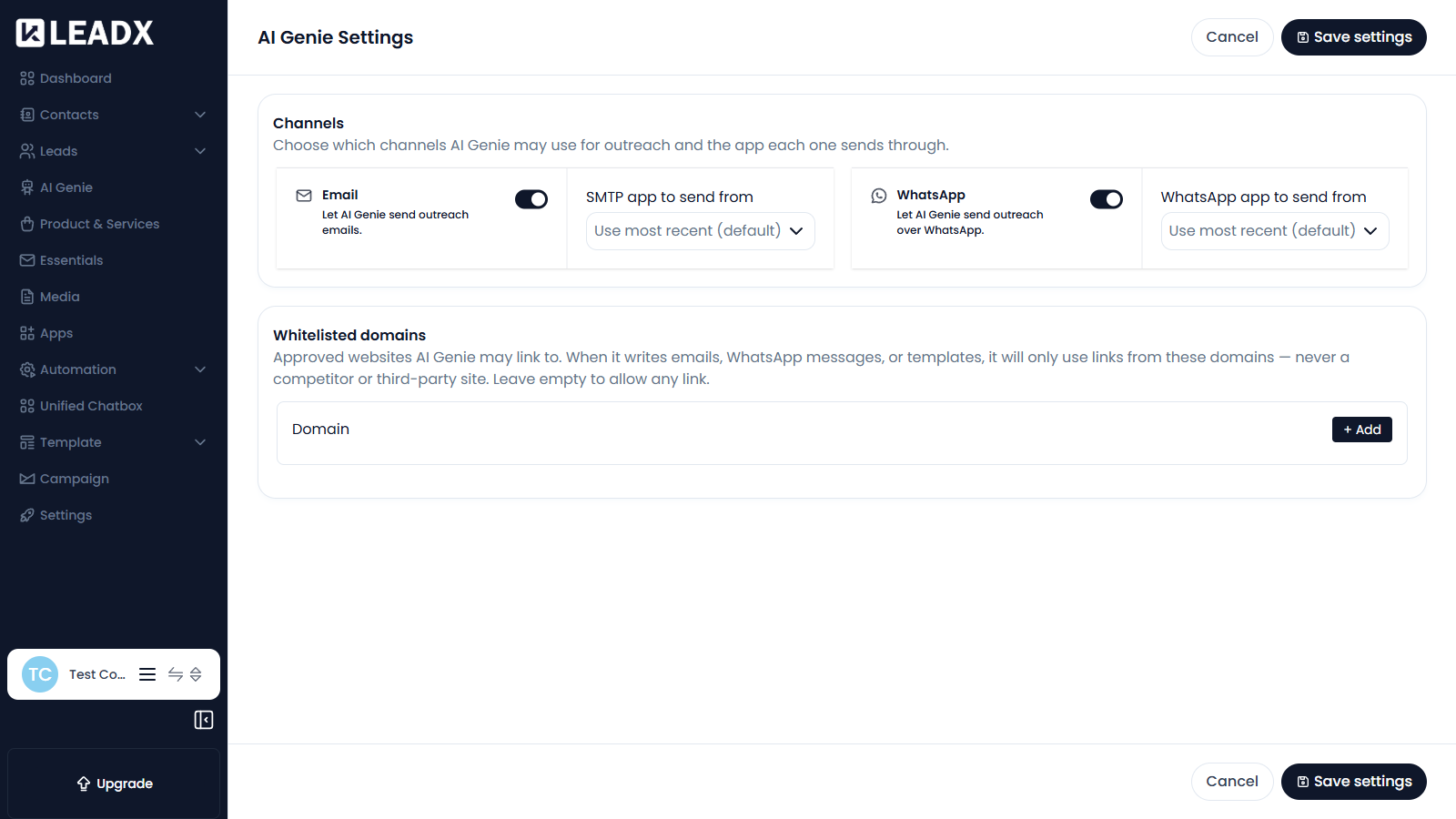
AI Genie Settings controls how AI Genie is allowed to reach your audience — which channels it may use, which connected app it sends through, and which websites it may link to.
Access
- Navigation path:
Sidebar > Settings > Feature Settings > AI Genie Settings - Route:
/ai-genie/settings - Access: available to users who can manage AI Genie settings.
Channels
Choose which channels AI Genie may use for outreach and the app each one sends through.
- Email — turn on to let AI Genie send outreach emails, then choose the SMTP app to send from
- WhatsApp — turn on to let AI Genie send outreach over WhatsApp, then choose the WhatsApp app to send from
Both channels default to Use most recent (default), which uses your most recently connected app of that type.
Whitelisted Domains
Approved websites AI Genie may link to. When it writes emails, WhatsApp messages or templates, it will only use links from these domains — never a competitor or third-party site.
To add one, enter the domain and click + Add.
Leave the list empty to allow any link.
Steps To Update Your Settings
- Turn the channels you want on or off.
- Choose the sending app for each enabled channel.
- Add any domains you want to whitelist.
- Click
Save settings.
Use Cancel to discard your edits.
Helpful Notes
- A channel must have a connected app before AI Genie can send through it. Connect one under Apps.
- Whitelisting domains is a good way to keep AI-written copy pointing only at your own website.