Google Calendar
Overview
Connecting Google Calendar lets LeadX put meetings straight into a Google calendar and generate a Google Meet link for them.
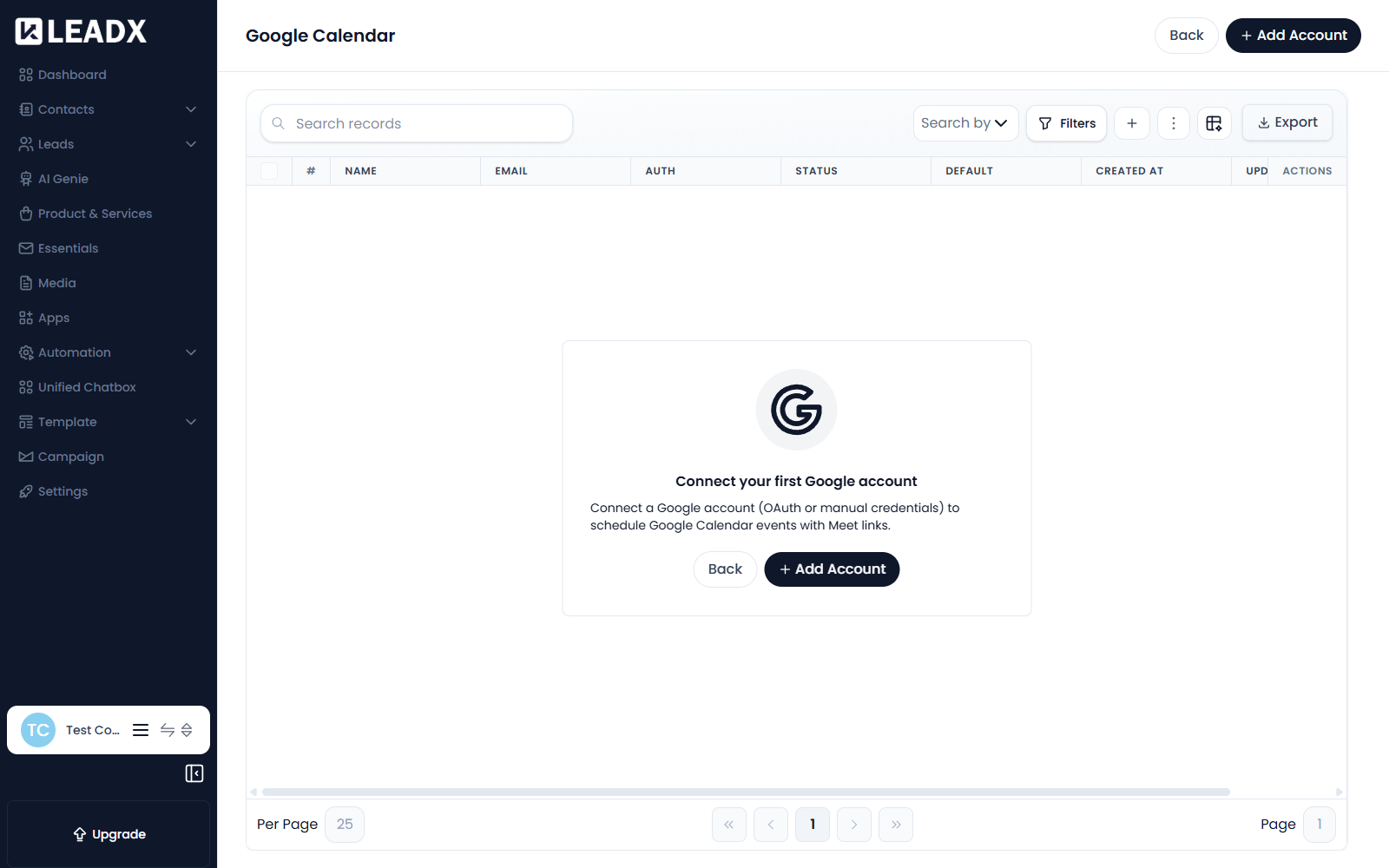
Connect a Google account (OAuth or manual credentials) to schedule Google Calendar events with Meet links.
Access
- Navigation path:
Sidebar > Apps > Google Calendar - Route:
/apps/google-calendar
Prerequisites
A Google account you are willing to let LeadX create calendar events in. For the OAuth route that is all you need — you authorise it by signing in.
Connect A Google Account
Click Add Account, then Connect Google.
This opens Google's own sign-in and consent screen. Choose the account, review what LeadX is asking for, and approve. You are returned to LeadX with the account connected — there are no credentials to copy by hand.
Manual credentials are also supported if your organisation would rather not use the sign-in flow.
Steps
- Go to
Sidebar > Apps > Google Calendar. - Click
Add Account. - Click
Connect Google. - Sign in to the Google account and approve the request.
- You return to LeadX with the account listed.
Table Details
| Column | Meaning |
|---|---|
| Name | The connection's name |
| The Google account that was connected | |
| Auth | How it was authorised — OAuth or manual credentials |
| Status | Whether the connection is working |
| Default | Whether this account is used when no other is chosen |
| Created At / Updated At | When it was connected, and when it last changed |
| Actions | View, edit and delete controls |
Edit Or Delete A Connection
Use the row actions. Removing a connection stops LeadX creating new calendar events through it; events already created stay in the Google calendar.
Helpful Notes
- Before any account is connected the page shows Connect your first Google account.
- Meetings scheduled with Google Meet as the provider get their Meet link from this connection.
- Members can connect their own Google Calendar under Member Settings — use that when meetings should land in each person's personal calendar rather than a shared company one.
- Creating a meeting invites the attendees, so it reaches real people. Check the attendee list before saving.