Manual Chatbots
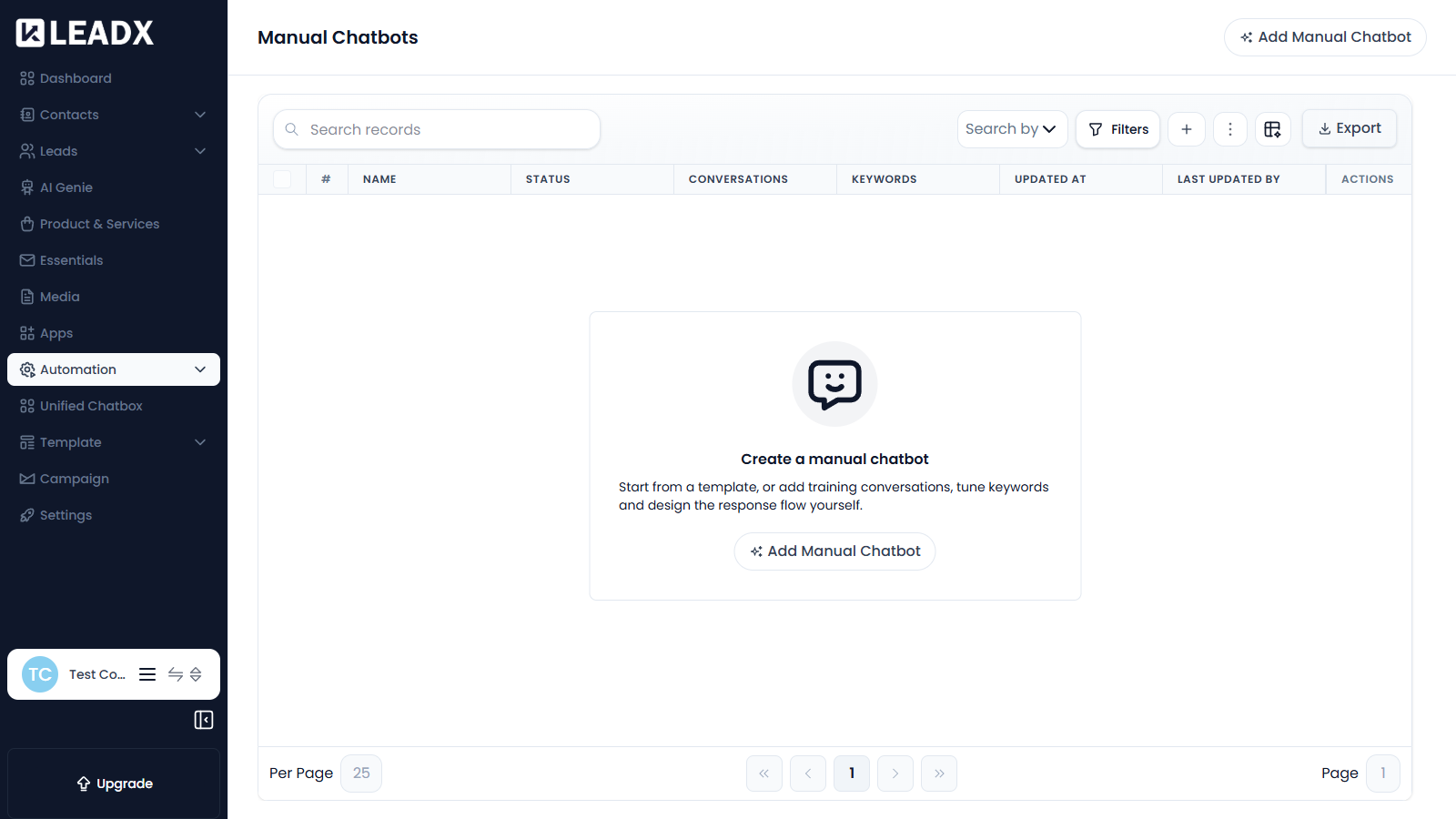
Before you create anything, the page invites you to make your first chatbot:
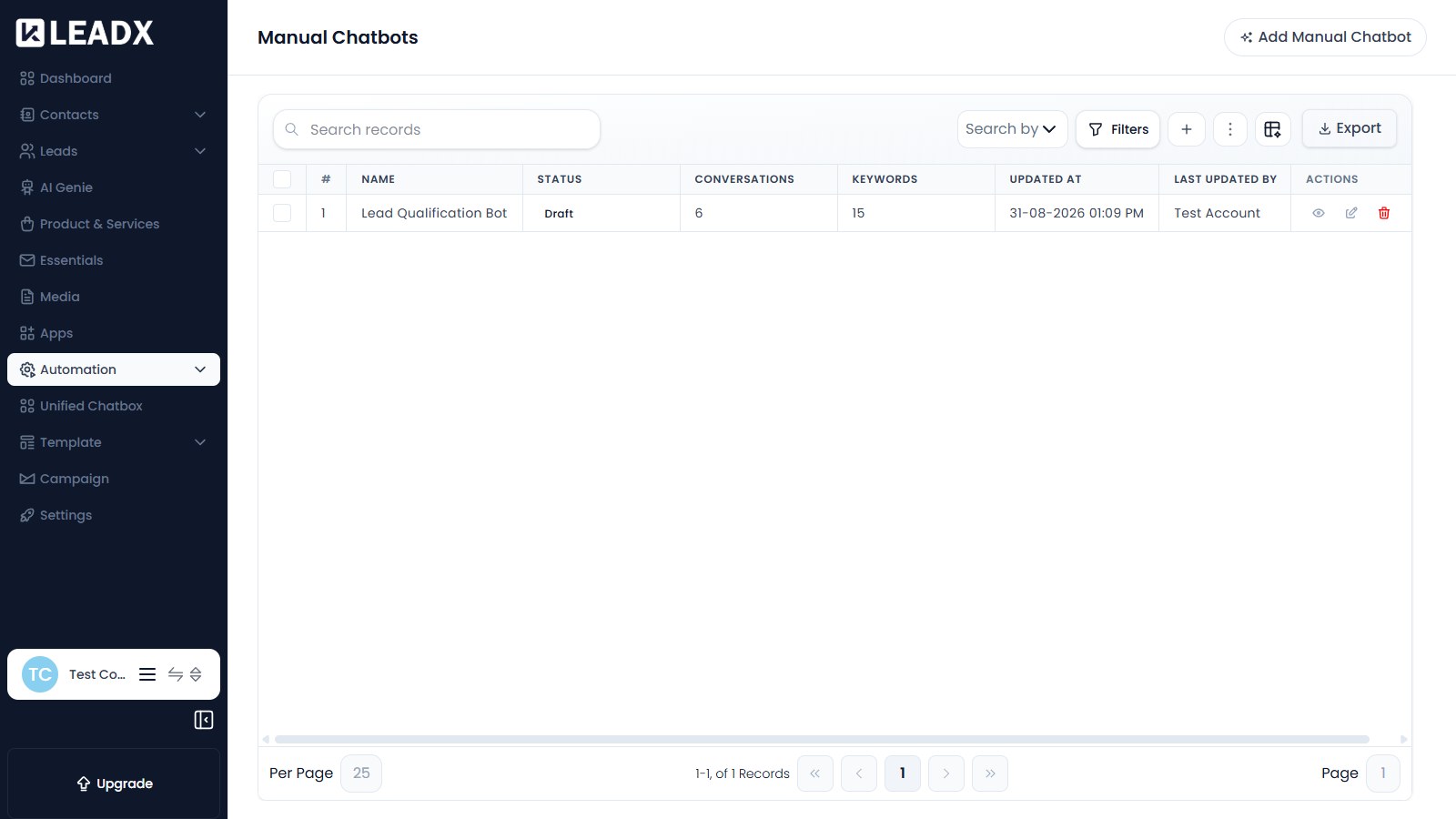
Once you have chatbots, they are listed in a table:
Overview
A Manual Chatbot is a chatbot whose replies you design yourself. You provide example conversations and keywords, then build the response flow, so the bot answers visitors the way you want.
Access
- Navigation path:
Sidebar > Automation > Manual Chatbots - Route:
/manual-chatbots - Access: available to users who can view chatbots.
What Users Can Do
- create a chatbot from a template or from scratch
- add training conversations the bot should recognise
- tune the keywords that route visitors to the bot
- design the response flow
- publish, pause or keep a chatbot as a draft
Steps To Add A Manual Chatbot
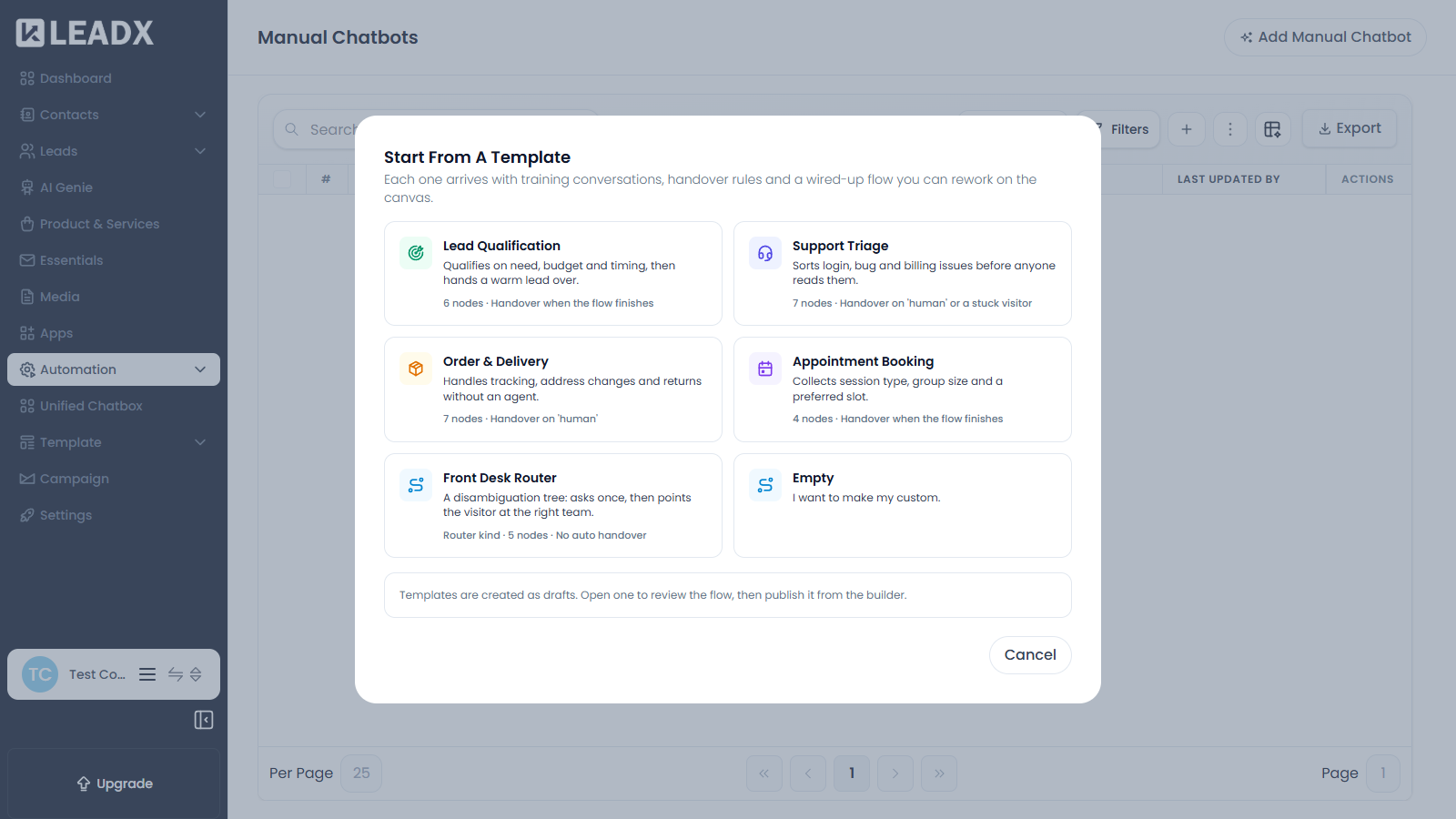
Clicking Add Manual Chatbot opens the template picker:
- Click
Add Manual Chatbot. - Choose a template, or choose
Emptyto build your own. - Open the new chatbot from the list to review its flow on the canvas.
- Adjust the training conversations and keywords as needed.
- Publish it from the builder when you are ready.
Available Templates
- Lead Qualification — qualifies on need, budget and timing, then hands a warm lead over
- Support Triage — sorts login, bug and billing issues before anyone reads them
- Order & Delivery — handles tracking, address changes and returns without an agent
- Appointment Booking — collects session type, group size and a preferred slot
- Front Desk Router — a disambiguation tree that asks once, then points the visitor at the right team
- Empty — start from scratch
Each template arrives with training conversations, handover rules and a wired-up flow you can rework on the canvas.
Table Details
The chatbot list shows:
- Name
- Status
- Conversations
- Keywords
- Updated At and Last Updated By
- Actions
Helpful Notes
- Templates are created as drafts. Open one to review the flow, then publish it from the builder.
- A published chatbot starts answering real visitors immediately.
- Which chatbot handles a conversation when several could match is decided in Chatbot Manager.