Chatbot Manager
Overview
The Chatbot Manager decides which chatbot takes a conversation, and what happens when more than one fits.
If you run a single chatbot you will rarely open this page. It matters once several chatbots are live and a visitor's message could plausibly be answered by more than one of them.
Access
- Navigation path:
Sidebar > Automation > Chatbot Manager - Route:
/chatbot-manager - Access: available to users who can view chatbots.
Prerequisites
- At least one chatbot to route to — create one under Manual Chatbots.
- Somewhere for conversations to arrive from, such as a Chat Widget.
Tab 1 — Entry Points
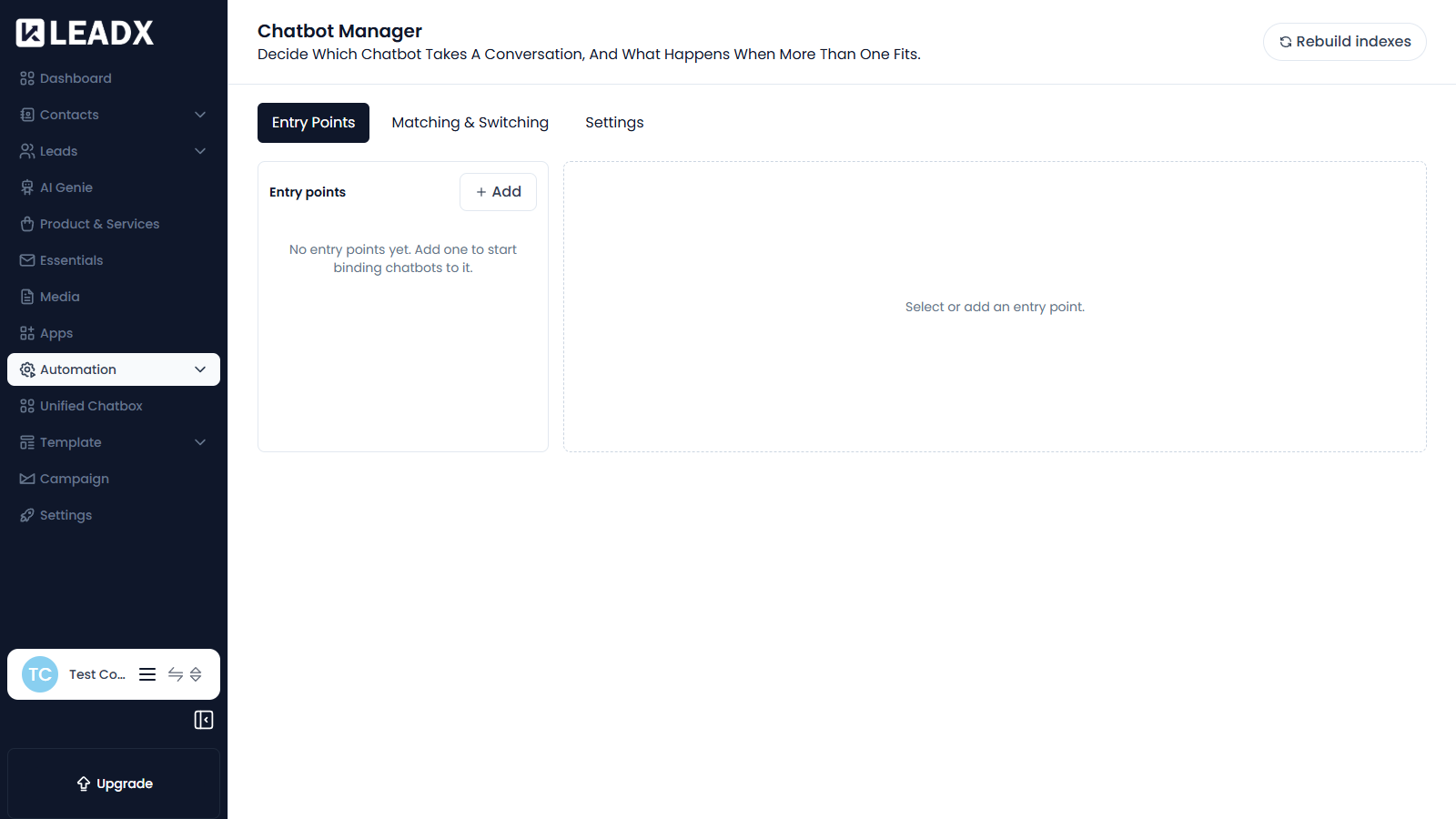
An entry point is a place a conversation can start. Chatbots are bound to entry points, which is what makes them eligible to answer there.
Steps To Add An Entry Point
- Open the
Entry Pointstab. - Click
Add. - Enter the entry point's details.
- Bind the chatbots that should be able to answer there.
- Save.
Until you add one, the page shows No entry points yet. Add one to start binding chatbots to it. Select an entry point from the list to see and edit what is bound to it.
Tab 2 — Matching & Switching
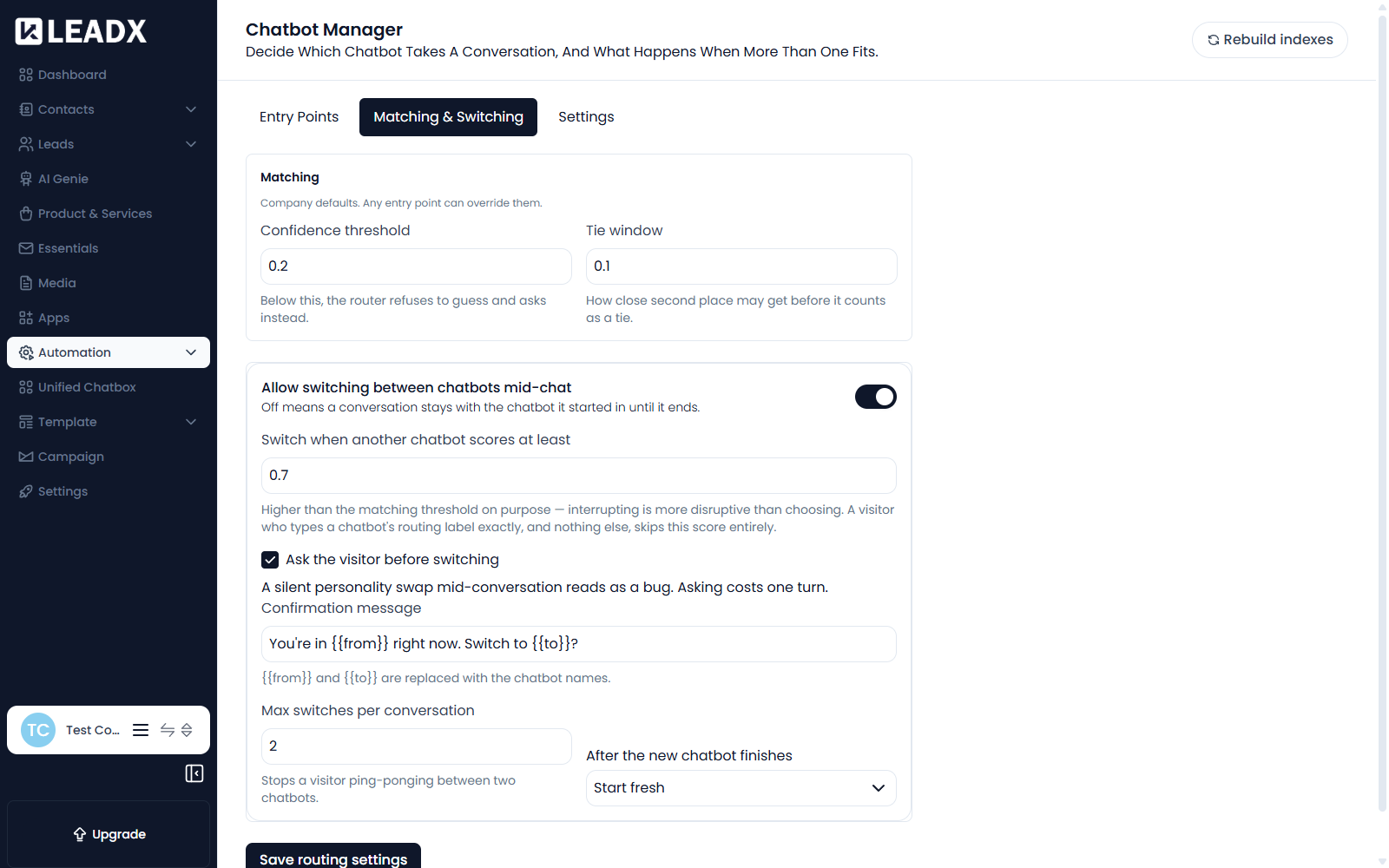
These are company defaults — any entry point can override them.
Matching — choosing a chatbot in the first place
| Setting | What it does |
|---|---|
| Confidence threshold | Below this, the router refuses to guess and asks the visitor instead. |
| Tie window | How close second place may get before it counts as a tie. |
How to think about these: raise the confidence threshold and the router asks more often rather than risking a wrong chatbot. Widen the tie window and near-equal matches are treated as ties, so the visitor is asked to choose instead of the router picking narrowly.
Switching — changing chatbot mid-conversation
| Setting | What it does |
|---|---|
| Allow switching between chatbots mid-chat | Off means a conversation stays with the chatbot it started in until it ends. |
| Switch when another chatbot scores at least | The score another chatbot must beat to interrupt. Set higher than the matching threshold on purpose — interrupting is more disruptive than choosing. A visitor who types a chatbot's routing label exactly, and nothing else, skips this score entirely. |
| Ask the visitor before switching | A silent personality swap mid-conversation reads as a bug. Asking costs one turn. |
| Confirmation message | What the visitor is asked when a switch is proposed. {{from}} and {{to}} are replaced with the chatbot names. |
| Max switches per conversation | Stops a visitor ping-ponging between two chatbots. |
| After the new chatbot finishes | Start fresh or Resume where they left off. |
After the new chatbot finishes decides what happens once the chatbot that took over is done:
Start fresh— the conversation begins again from the topResume where they left off— the visitor returns to the point in the original chatbot where they were interrupted
Click Save routing settings to apply your changes.
Tab 3 — Settings
General options for the chatbot manager.
Rebuild Indexes
The Rebuild indexes button in the header refreshes the routing indexes used to match conversations to chatbots.
Use it after making significant changes to your chatbots' keywords or training conversations, if routing does not seem to reflect them yet.
Helpful Notes
- Switching is off by default in effect — with Allow switching turned off, a conversation stays where it started, which is the simplest behaviour and the easiest to reason about.
- Turn switching on only once you have several distinct chatbots and can see visitors landing in the wrong one.
- Because entry points can override the company defaults, you can keep conservative defaults and loosen them for one specific entry point.